Showing posts with label Tips. Show all posts

Saturday, October 18, 2014


How to Logging to your PC using face detection - mytrickpages.com
Logging to your PC just 
simply looking at it…
 
We need a small but very worth app for this it named as ‘Luxand Blink’ using this appliction you can log into your pc using face detection logging methord. if you unable to loging to your pc using this methord there is a alternative way.. you can just type password and logging.
This software even work if you ware a sun Glasses or Contacts lensses and even if you with new hear cut it can still identify you.. this may perfecttly work with daylight and night too. just what you need is working web cam.
try this application and enjoy..
just visit to there website and get that application. bellow is the link for there official website

How to Install Ubuntu Inside Windows


VM-ware Player. Oracle Box is the easiest way to run multiple operating systems at the same time on your PC. With its user-friendly interface, VM-ware Player makes it effortless for anyone to try out Windows 8 developer release, Windows 7, Chrome OS or the latest Linux releases, or create isolated virtual machines to safely test new software and surf the Web. VMware Player can also be used to run a virtual copy of an old PC so that you can recycle the old machines you have under your desk or stored in the closet [Extracted from VMware Player Official Website].


Explanation of Virtual Machines  :


1) Download VMware Player and Install it.

You may have to create an Account.
 
2) Open VMware Player from the desktop Icon.
 
3) Now Click Create a New Virtual Machine in the Right Menu.
 
Step 4) Choose either to Use a Disc Installation or From ISO File:
Download Full free open source UBUNTU ISO from HERE
Step 5) Set your Full Name, Username, and Password to use in your OS. Name your OS and set the Location.
Step 6)  Set the Disc Size you want to use in your Virtual Machine. Click Finish.
Step 7) Now it will starts your OS Virtual Machine. To launch it again simply click on it in the Left Menu of VMware Playe

How to Connect a Laptop or Desktop Computer / TV 

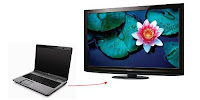
Suppose you wish to watch a movie or share a slide-show of pictures with your family on your PC but have a screen that leaves much to be desired. In such a situation, you can connect your computer to a television screen to allow your entire family to enjoy comfortably.
Connect Laptop Computer to Television
There are many ways in which you can connect your laptop/ computer to a television. However, the overall video quality will be different for different methods. You can choose which one to use based on the quality or the availability of hardware. The first step is to know what type of ports and connections your TV and computer have. If you already know the type of ports and connections available on your hardware, you can directly jump to Step 2. If not, then the different types of ports are explained in detail below:-
Connect PC or Laptop to TV
Different types of PC to TV connection ports
1) RCA/Composite: The oldest and the lowest quality connection available. They are the Yellow, Red and White connections most of us are familiar with. Yellow is used for composite video, white for left analog audio and red for right analog audio.

2) S-Video: S-Video or Super Video offers slightly better quality than Composite connections. As it is one of the oldest type of connections available, most televisions and computers have it. There are two types of S-Video ports, one containing 4 pins and the other containing 7 pins. This type of connection is used only for video. So you will need to connect an audio cable from your computer's headphone jack to the red and white audio inputs on your TV if you want audio to work.

3) VGA(Video Graphics Array): Most computers and televisions have a VGA port. It offers much better quality than S-Video and should be preferred if you have a HDTV. Older CRT TVs however, will not have a VGA port and will require a PC to Television converter. Just like S-Video, VGA also does not support audio and will require an additional audio cable.
Laptop Computer to TV
Different types of connecting cables to connect computers to TVs
4) DVI: Digital Video Interface offers much better quality than VGA connections. Most laptop computers and HD TVs will have these connections. Just as the name suggest, this type of connection can be used only with digital TVs. Also like the previous two, DVI connections also require the use of an audio cable for audio to work.

5) HDMI: The highest quality connections available. Most HD TVs will have this connection, however, chances are that your computer would not. If your computer happens to have a HDMI connection port, this should be preferably used. If your computer doesn't, you can use an HDMI to DVI adapter to convert HDMI to DVI. 
connect laptop to tv

Step 2: Once a common type of port between the two devices is recognized, you will need the right connector cable to physically connect them. The different types of connector cables are pictured above. If you do not find two matching types of connection ports, you will need an adapter to make the connections type match.

Step 3: After connecting the two devices, on your TV, select the external input with which your TV is connected to the computer. It may be HDMI1 or AV1 depending on how you have made the connection. This is much similar to how you select input from your DVD player.

If you have followed the steps correctly, your TV should now be displaying your computer's screen.

Important Note: If your computer is not recognizing the external display, you must connect the TV before starting your computer. If the picture appears distorted, you will need to change the screen resolution of your TV by altering the display settings from your computer. Most older TVs will support only one display resolution while newer TVs will support plenty of them